TradingView chart bot: indicators, Binance prices and X news, with Krypton alerts
Ask for a chart and get the real TradingView chart right in the chat, with the indicators you name, next to Binance prices and a summary of the week's news on X. The bot explains what each indicator shows, then sets a Krypton routine that watches the Binance candles and messages you when one of your rules hits. It never trades and never tells you what to buy.
Not investment advice. Krypton is software, not a broker or adviser. Trading can lose all the money you put in, and you alone decide and answer for every order. Trading terms
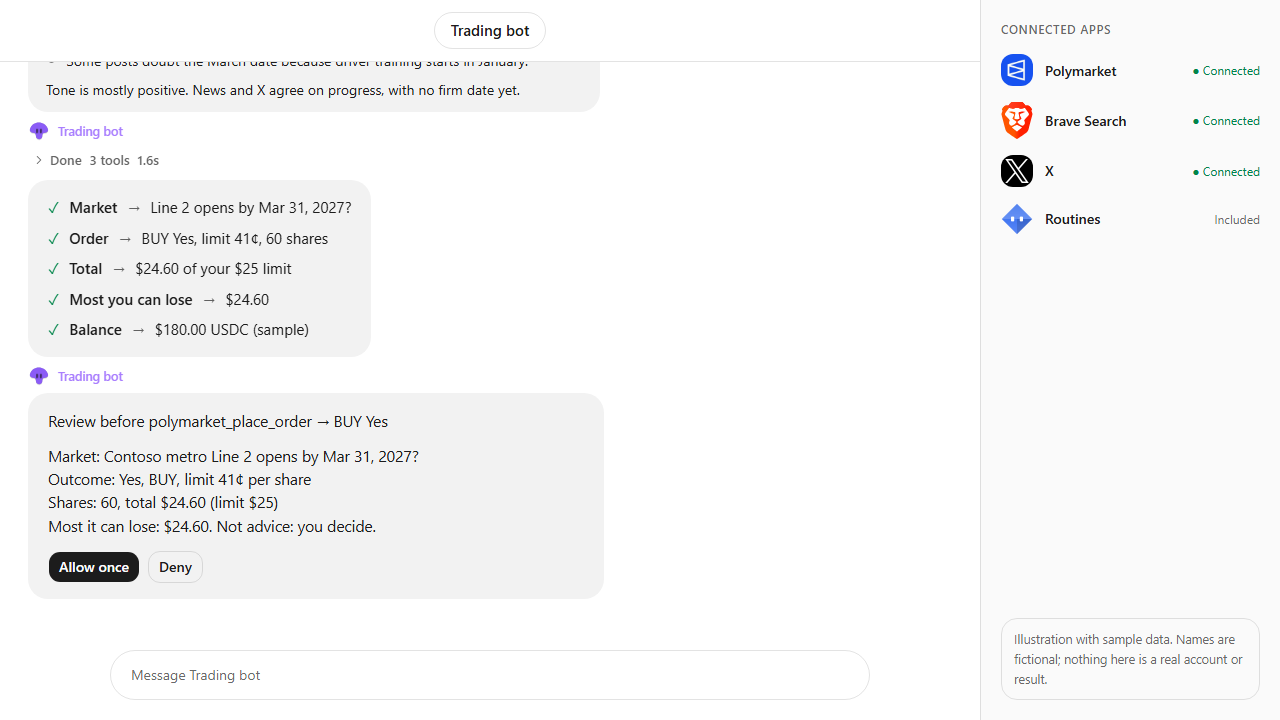
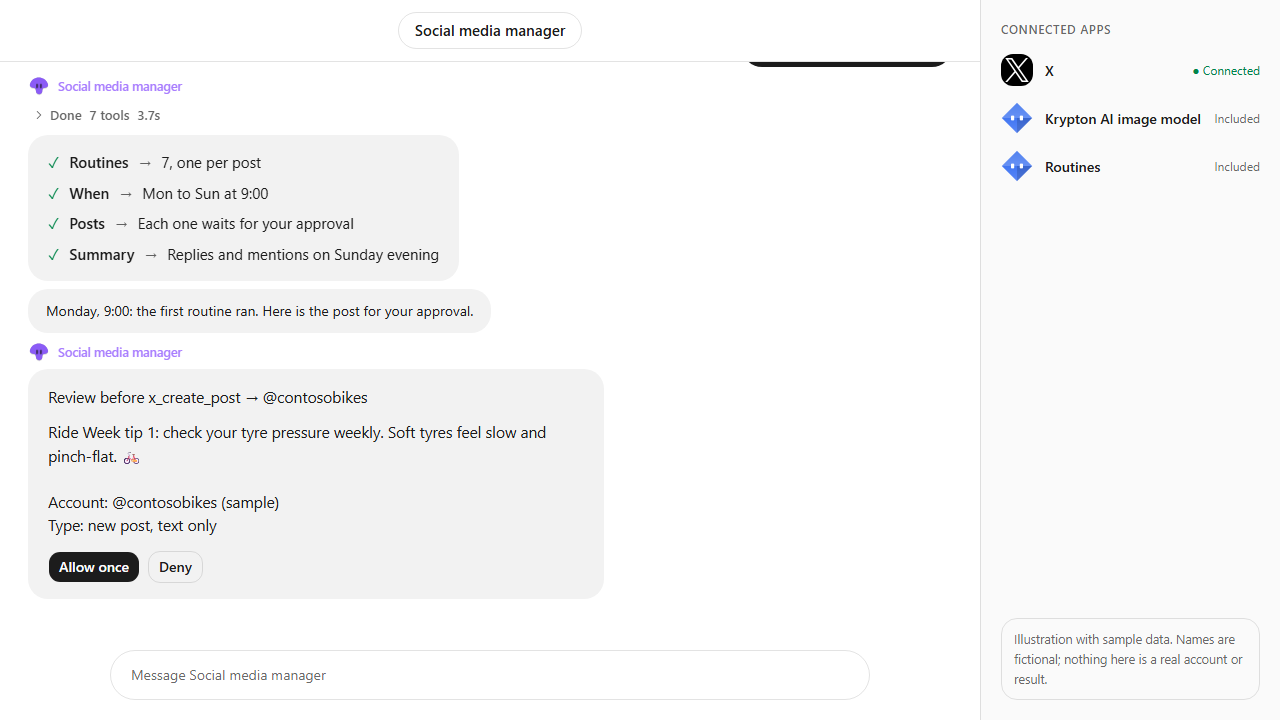
Approvals. X posts always ask first, and so do trading orders unless you set a Binance or Polymarket bot to trade on its own within its limits. Other actions ask only when Approvals are on in Settings; on Never ask, the krypton.bot default, they run without asking.
Apps used

Binance
Supplies the BTC/USDT price, 24-hour stats and 4-hour candles the bot reads, and the read-only candle feed the alert routine watches. No orders here.

X
Read only here: searches the last 7 days of posts about BTC so the bot can sum up the news, and checks again when an alert fires. Nothing is posted.

TradingView chart in chatBuilt in
The show_chart tool puts TradingView's free interactive chart in the chat, with indicators such as RSI, MACD and an EMA. No TradingView account or key; it shows the chart only, so prices and alerts come from Binance and Krypton.
Included in Krypton, nothing to connect
Krypton routinesBuilt in
A watch routine checks the Binance 4-hour candles every 15 minutes without a model and wakes the bot only when a new candle closes. These are Krypton alerts, not TradingView alerts.
Included in Krypton, nothing to connect
How to set it up in Krypton
Connect Binance (read-only is enough)
In Krypton, open Integrations, pick Binance and add an API key. For prices, candles and alerts a read-only key is enough: leave trading and withdrawals off on the Binance side.
Connect X for the news
Pick X in Integrations and paste your own X developer app keys (consumer key and secret, access token and secret); X bills your developer account per use. The bot only searches and reads posts in this setup; it posts nothing, and any X post always asks you first.
Hire the bot
Open Bot Marketplace and hire the Trading bot, or ask Chief in chat to create a chart bot. Give it the Binance and X apps. TradingView charts in chat are built in and need no account or key.
Ask for the chart
Paste the prompt below and change the pair, timeframe and indicators. Any TradingView symbol works for the chart, written EXCHANGE:TICKER, such as NASDAQ:AAPL or FX:EURUSD; price data and alerts need a pair Binance trades.
Set your alert rules
Name the rules in plain words: RSI levels, a close across a moving average, a price level. The bot turns them into a Krypton routine on the Binance candles and shows you what it will watch and how often.
Get the alerts
When a rule hits, the bot posts in the chat with the chart and the latest X news, and you get a notification on desktop and mobile. Pause or change the routine any time from Routines or in chat.
Show BTC/USDT on a 4-hour TradingView chart with RSI, MACD and the 9 EMA, check the price on Binance and sum up this week's BTC news on X. Explain each indicator in plain words, then alert me when RSI goes above 70 or below 30, or a 4-hour candle closes across the 9 EMA. Don't trade and don't tell me what to buy.What the bot does
- Opens TradingView's interactive chart in the chat for the symbol and timeframe you ask for, with RSI, MACD, the 9 EMA and volume.
- Reads the price, 24-hour stats and latest candles from Binance so its notes match the market data.
- Searches the last 7 days of posts on X and sums up the main news themes, read only.
- Explains in plain words what each indicator shows and what traders usually look for, without forecasts.
- Creates a Krypton watch routine on the Binance 4-hour candles, checked every 15 minutes without a model.
- Wakes up only when a new candle closes, checks your rules and messages you with the chart and fresh X news when one hits.
- Never places an order and never says what to buy or sell; a Binance order needs your Allow once on a card in chat unless you set the bot to trade on its own.
Questions
Is this investment advice?
No. The bot describes what the chart, the prices and the news show and alerts you on rules you set. It never says what to buy or sell, and you alone decide and answer for any trade.
Do I need a TradingView account?
No. The chart in chat is TradingView's free embed and works for any TradingView symbol, such as NASDAQ:AAPL, FX:EURUSD or BINANCE:BTCUSDT. Krypton does not connect to your TradingView account and cannot read TradingView data, so the numbers the bot quotes come from Binance.
Are these TradingView alerts?
No. Krypton cannot set alerts inside TradingView. The alerts are a Krypton routine that watches the Binance candle feed and messages you in chat, with a notification, when a rule hits.
Can the bot trade when an alert fires?
Not in this setup: it only messages you. If you connect Binance with trading turned on and ask for an order, Krypton shows an approval card first and nothing is placed until you tap Allow once, unless you set that bot to trade on its own within its limits.
How often are the alerts checked, and does it cost model credits?
The routine checks the candle feed every 15 minutes without a model. The bot only runs, and uses credits, when a new 4-hour candle closes, to check your rules and the news.
Is the video real trading?
No. It is an illustration: the chart is TradingView's public chart at the time of recording, and the prices, news and the rest of the chat are sample data to show the flow. Nothing was traded or posted.
More use cases
All use cases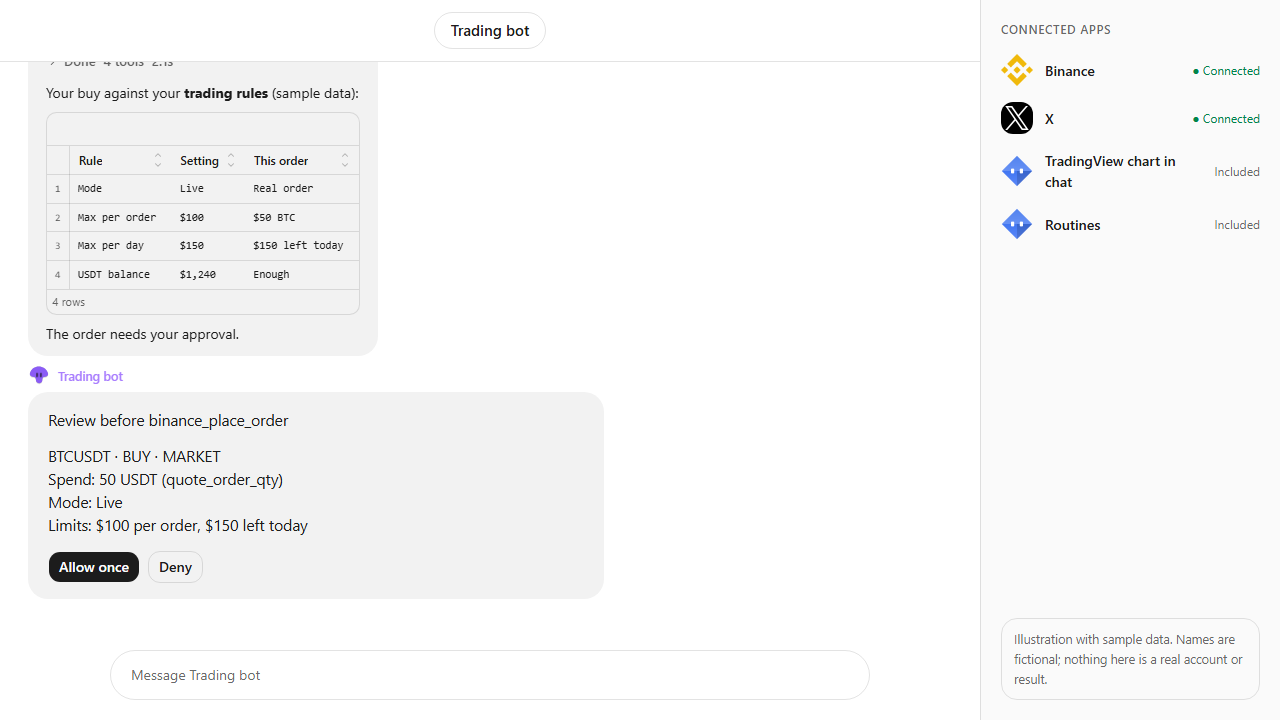
Browse every app in the MCP catalog or hire a ready-made bot from the Bot Marketplace.
Build this bot in Krypton
Start free, connect your apps and paste the prompt. X posts always wait for your OK, and so do trading orders unless you set the bot to trade on its own; turn on Approvals to review everything else first.