Binance trading bot: X news, a TradingView chart and a DCA buy you approve
One bot, three sources. It reads what X is saying about the coin, puts the TradingView chart in the chat and explains it, then checks your weekly buy against your balance, the exchange's rules and your own limits. The order waits for your tap.
Not investment advice. Krypton is software, not a broker or adviser. Trading can lose all the money you put in, and you alone decide and answer for every order. Trading terms
Approvals. X posts always ask first, and so do trading orders unless you set a Binance or Polymarket bot to trade on its own within its limits. Other actions ask only when Approvals are on in Settings; on Never ask, the krypton.bot default, they run without asking.
Apps used

Binance
Reads prices, candles and balances, checks each order against the symbol's rules and places the spot order after you tap Allow once.

X
Read only here: searches the last 7 days of posts about the coin so the bot can sum up the news and the tone. Nothing is posted.

TradingView chart in chatBuilt in
The show_chart tool puts the interactive TradingView chart in the chat, here BINANCE:BTCUSDT on 4-hour candles with RSI and MACD. Free official embed, no TradingView account or key.
Included in Krypton, nothing to connect
RoutinesBuilt in
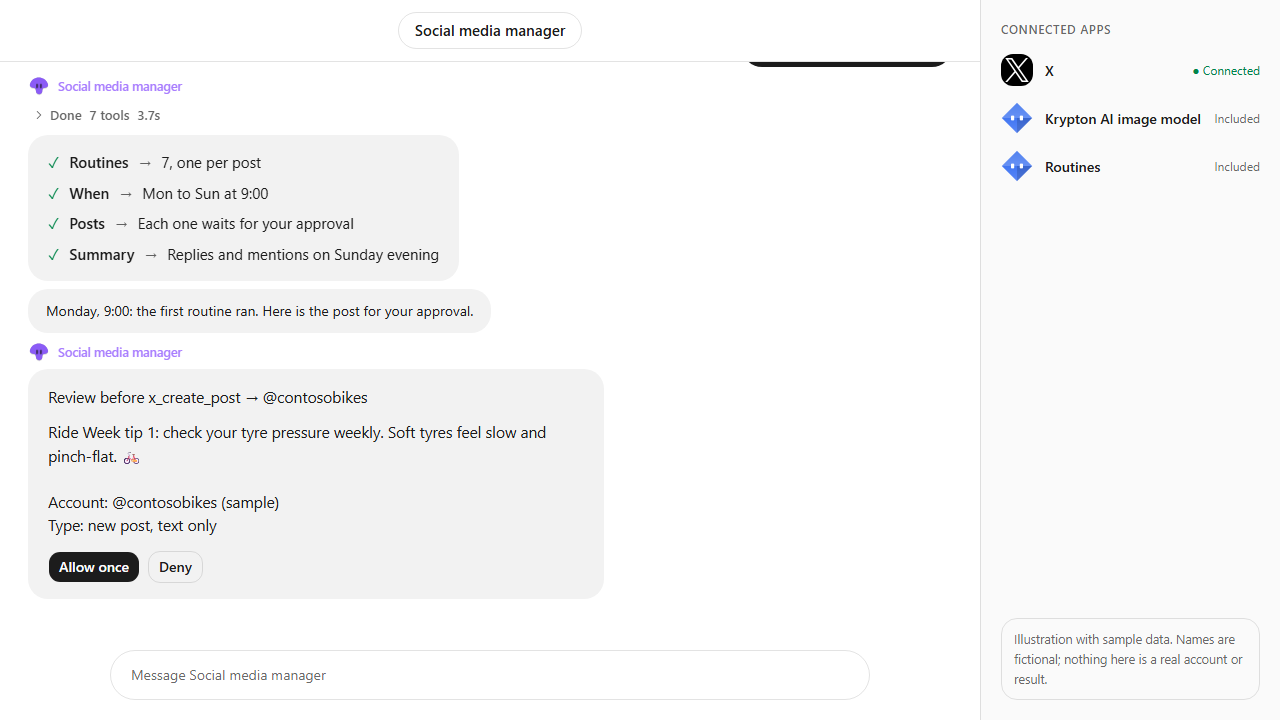
Runs the plan every Monday at 9:00: the bot checks the news, the chart and your balance, then brings you the order to approve.
Included in Krypton, nothing to connect
How to set it up in Krypton
Create a Binance API key
In Binance, open Account, API Management and create a key. Enable Spot & Margin Trading only and leave withdrawals off: Krypton refuses keys that can withdraw or transfer. Testnet keys work too.
Connect Binance and X in Krypton
Open Integrations, pick Binance, paste the key and secret and confirm the trading consent; the card shows Testnet or Live. Then connect X so the bot can search posts. The TradingView chart is built in and needs nothing.
Set the trading rules
In Trading rules, pick the mode (Dry run simulates orders, Live sends real ones) and set Max per order and Max per day in USD. The bot can't change these from chat.
Hire the bot
Open Bot Marketplace and hire the Trading bot, or ask Chief in chat to create one, and give it the Binance and X apps.
Send your plan
Paste the prompt below and change the coin, the amount and the day. The bot shows the news, the chart and the exact order before anything is placed.
Approve the order
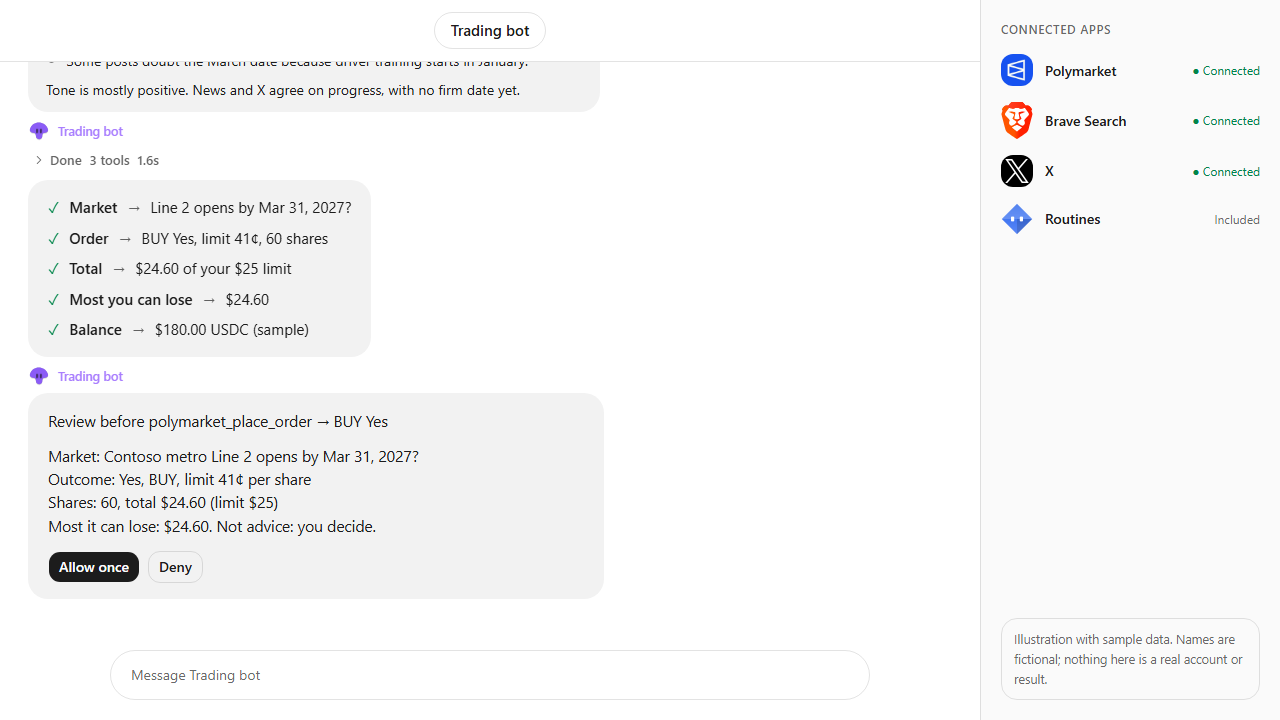
Every Binance order shows an approval card with the symbol, side and amount, and nothing happens until you tap Allow once, unless you set the bot to trade on its own. Orders over your limits are refused before they reach Binance.
Before my weekly BTC buy: check what X is saying about Bitcoin this week, show me the BINANCE:BTCUSDT 4-hour chart with RSI and MACD, then set up my $50 BTC buy with USDT for every Monday at 9:00, inside my trading rules.What the bot does
- Searches X for the last 7 days of posts about the coin and sums up the themes and the tone.
- Opens the TradingView chart in the chat with the indicators you name and explains how to read them.
- Reads the price, your USDT balance and the symbol's size and price filters on Binance.
- Restates your buy against your trading rules: mode, max per order and what is left of today's limit.
- Waits for you to tap Allow once on the order, places it, confirms the fill and saves the weekly routine.
- Reports facts only: no forecasts and no suggestions to buy or sell.
Questions
Can the bot place an order without asking me?
No. Every Binance order shows an approval card with only Allow once and Deny, whatever your Approvals setting. The one exception is a separate switch, only for the member who connected Binance, that lets a bot trade on its own within its limits.
Does the bot read TradingView data or set TradingView alerts?
No. The chart is TradingView's free official embed, shown in the chat for you to read. The bot's prices and candles come from Binance, and its alerts are Krypton routines.
Does the X news decide whether it buys?
No. The news summary and the chart are context for you. The bot runs your own plan, and you decide on every order.
What stops the bot from spending more than I want?
Your Max per order and Max per day limits. Krypton checks every order against them before it is sent and refuses anything over, whatever the bot asks for.
Is this financial advice?
No. The bot executes your own plan and reports facts. It never tells you what to buy or sell, and you are responsible for every trade.
Is the video a real account?
No. It is an illustration with sample data: the posts, balances, prices and fills are made up to show the flow.
More use cases
All use cases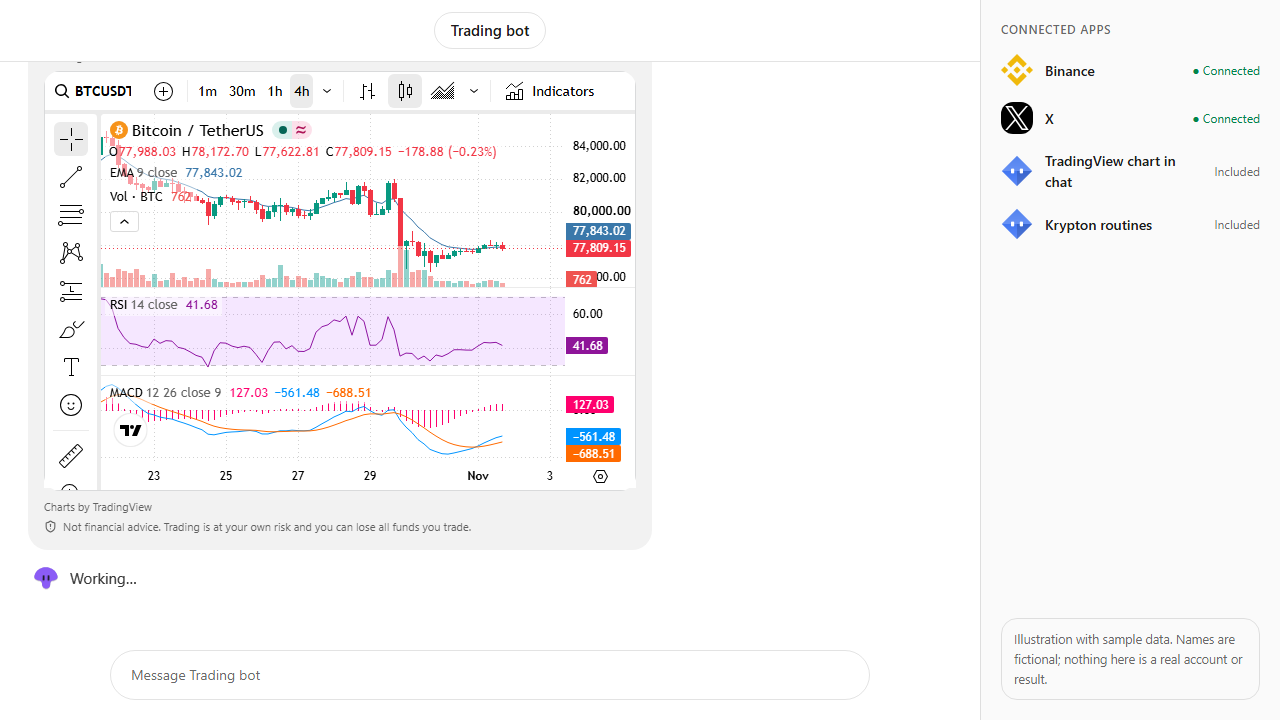
Browse every app in the MCP catalog or hire a ready-made bot from the Bot Marketplace.
Build this bot in Krypton
Start free, connect your apps and paste the prompt. X posts always wait for your OK, and so do trading orders unless you set the bot to trade on its own; turn on Approvals to review everything else first.