How to self-host your own AI agent in 10 minutes
Comparison
| Path | What you do | What it is not |
|---|---|---|
| Published images | Run one installer in an empty directory, then sign up and connect a model. | A guaranteed ten minutes. Download times differ. |
| This computer | Let the desktop app start the same published images on your machine. | A replacement for the secrets checklist on a public server. |
| Public server | Prepare the env file, set the HTTPS origin, and proxy to loopback port 5173. | Exposing port 3100. The web server already proxies /api. |
| Source checkout | Clone the repo, set the env, run Postgres and the dev commands, for when you are changing Krypton. | Needed to run the published images. |
“Ten minutes” in the headline describes how small the local install is; nobody timed it with a stopwatch. To self-host this AI agent, you run one script to start Krypton’s published images, and Docker downloads them. That download is the unpredictable part. Once the app is running, you sign up, connect a model, and start chatting, which is the whole product. Exposing the deployment on a public hostname, adding TLS, and reviewing secrets are a separate task.
Everything here follows the self-hosting guide and the self-hosted AI agent page. If a command ever changes, those two remain the source of truth.
What a self-hosted Krypton deployment runs
A Krypton deployment with sign-in is more than a static website. According to the guide, it consists of a long-running API, a Graphile Worker, Postgres, and a computer provider. Docker is the default computer; E2B, Daytona, CreateOS, and Boat are optional remote computers, and each one needs its own API key. Every client, whether the web app, the Electron desktop app or the Expo mobile app, goes through that API.
Postgres, the bots’ files, browser profiles, and the audit log remain on the machine you run. Whatever reaches a model provider is governed by that provider’s own terms; you pick both the provider and the keys. The open source software has no seat fee. Your costs are the model provider plus any remote computer you switch on.
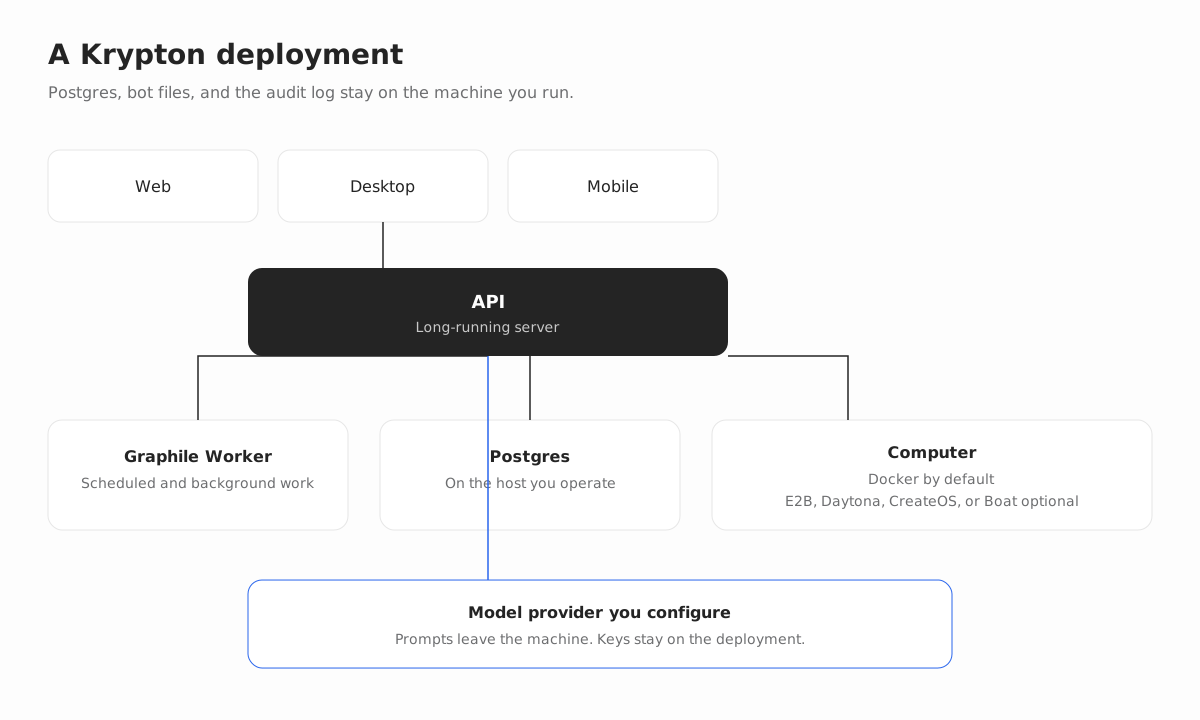
The code is Apache-2.0, and this install is the same product as Krypton Cloud, currently in beta (see plans and pricing if you would rather not host it).
System requirements
Published images. The guide calls for Docker Engine 26 or later, since bot home volumes rely on API 1.45 subpaths. Add the Compose plugin, curl, and OpenSSL. Node.js is not part of this path.
Source checkout. This path has different needs: Node.js 22.22.2 or later within the 22.x line, Node.js 24.x, or Node.js 26 and up, along with pnpm 9 and Docker. Node.js 23.x and 25.x are unsupported. Choose this route for developing Krypton itself; running the published images does not need it.
Step 1: install the published Docker images
In an empty directory on the machine that will host Krypton, run:
mkdir -p krypton && cd krypton &&
curl -fsSLO https://raw.githubusercontent.com/krypton-bot/kryptonbot/main/infra/compose/install-images.sh &&
bash install-images.sh
The script fetches the Compose file and .env.images.example, writes a .env filled with random secrets, and launches Krypton. Running it a second time leaves an existing .env untouched. Images default to the edge tag, which follows main-branch builds for linux/amd64 and linux/arm64. Until a stable release ships, do not count on a latest tag.
Configure before first start (optional)
Want to choose the public URL, image tag, or an optional provider ahead of the first start? Then run bash install-images.sh --prepare-only, edit .env, and then run bash install-images.sh once more. You can pass --prepare-only and --local together.
How the sandbox is wired
SANDBOX_PROVIDER is docker unless you change it. With the images Compose file, a sandbox supervisor comes up on the internal network, and the computer image gets downloaded. You can sign up and use local Docker computers with no E2B account at all. Whatever the provider, the published-images stack insists on SANDBOX_SUPERVISOR_TOKEN; if it is blank, Compose refuses to start rather than launching a supervisor without a token.
Open the app
Go to http://127.0.0.1:5173. The first person to register becomes the owner of the deployment. Connect a model inside the app. Local Docker computers are enabled by default.
Download time is what changes from machine to machine. A fast connection with a warm cache finishes well ahead of a laptop on slow Wi-Fi pulling down the app, the computer image and Postgres on a first install. Read “10 minutes” as a measure of how compact the installer is, and then check how long your own pull takes.
Step 2: create your first bot
With the account in place, everything else happens in chat. Each new bot asks for its name, title and description, and you choose whether it uses the shared team computer or a private one of its own. The screenshot shows the actual create-bot screen with demo data filled in; it contains no customer account.
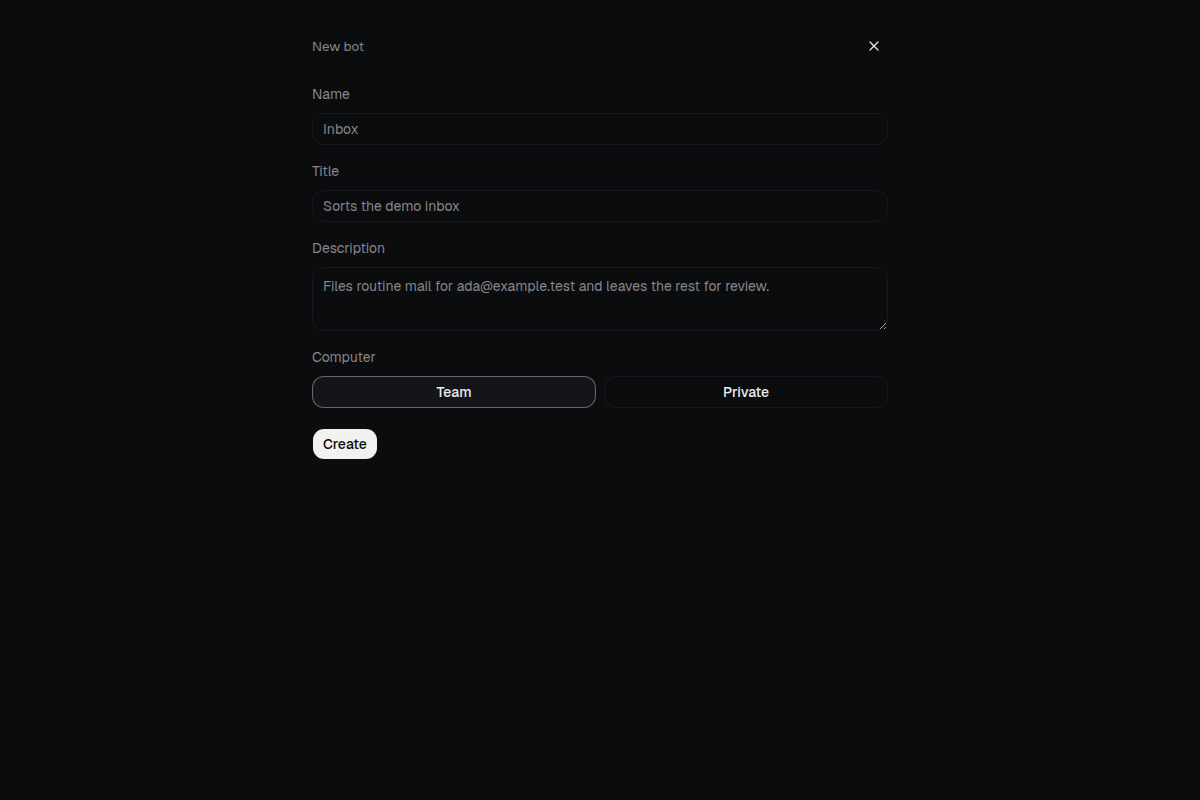
Each bot has its own conversations, memory, routines, and history, and you manage it from the same chat across the web, desktop, and mobile clients.
Step 3: choose a model for each bot
You can connect OpenAI, Anthropic, Google, and Vercel AI Gateway. Any OpenAI-compatible endpoint also works, and so does a local model server like Ollama, LM Studio, llama.cpp, or MLX. Because every bot can run its own model, you might let an inexpensive model triage while a different one does the writing.
You will find the model setting in the bot’s advanced settings. Its menu only shows models for credentials you have actually connected. The screenshot uses a made-up OpenAI credential and two catalog ids; it is neither a vendor endorsement nor your key.
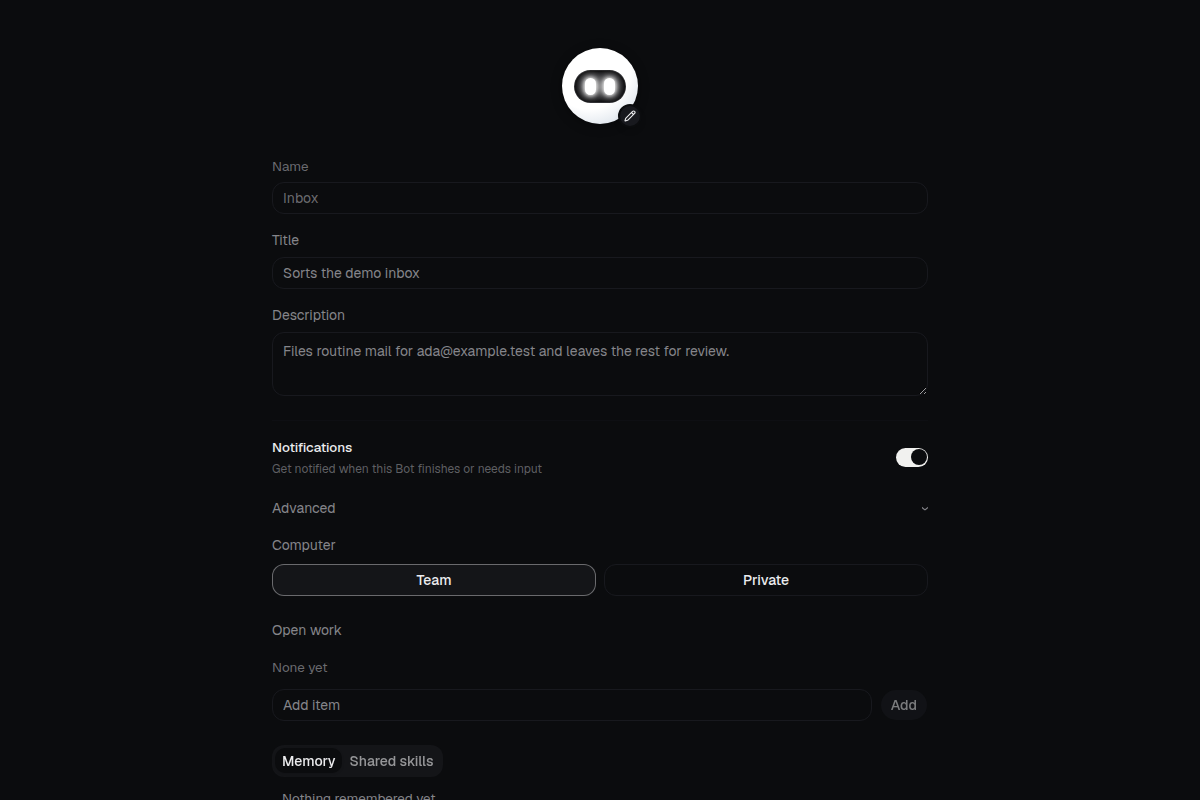
The server stores connector credentials encrypted, and no API response ever includes them. Prompts do leave the machine, since the model provider needs to read them. If that is a deal-breaker, point the bot at a local model server you operate.
Step 4: save a routine
A routine is Markdown you can read. Triggers include a schedule, a webhook, or a connected messaging provider. You read and edit that text in the routine editor. The screenshot shows a weekday inbox check with an invented instruction, and it is not linked to any real mailbox.
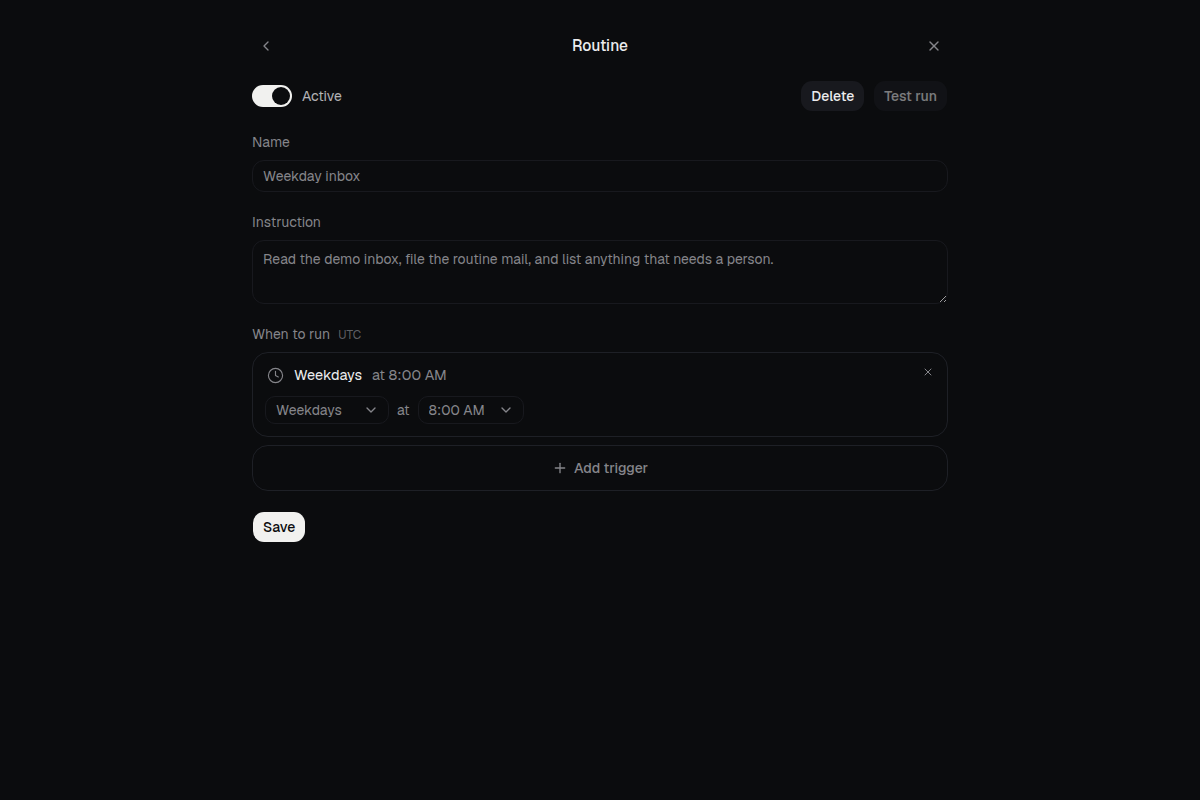
Putting a routine on a schedule grants no extra permissions. Whenever the work reaches a boundary you defined, the bot still stops.
Step 5: approve sensitive actions
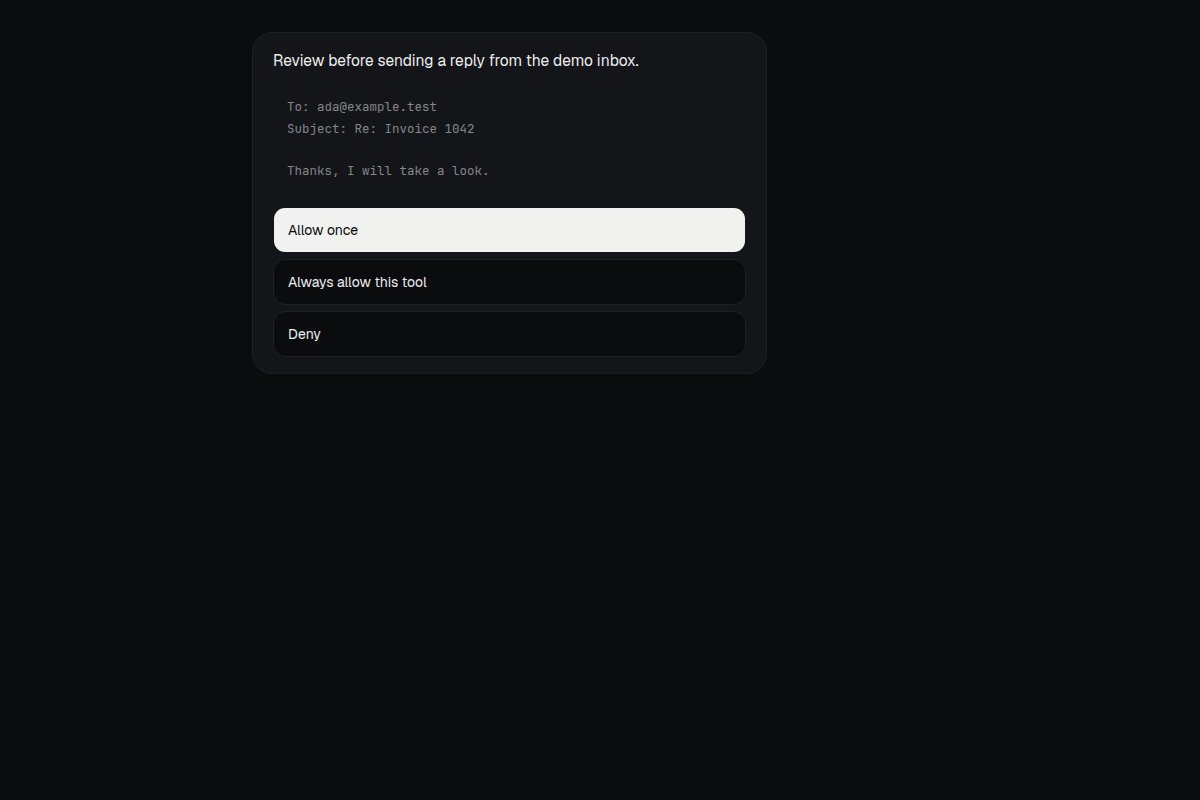
Approvals appear as a card in the conversation. The bot describes the action, shows the details, and waits for you to allow it once, always allow that tool, or deny it. Each action is written to an audit log on your deployment. The card pictured is a demo reply addressed to ada@example.test, and it was never sent.
If you want, optional connectors can add Slack, WhatsApp, Telegram, iMessage via Sendblue, and Feishu/Lark. They are extras: chatting in the Krypton apps works without any of them.
Running Krypton on a public server
When bots need to keep working after your laptop is closed, run the same installer on a VPS. The images Compose file binds the web app to loopback 127.0.0.1:5173. Handle TLS on the host, then forward traffic to that address. Keep port 3100 unpublished, because the web server already proxies /api.
Environment variables
Set KRYPTON_HOST to your hostname, and point BETTER_AUTH_URL, WEB_ORIGIN, and API_URL at that same https:// origin. To use a remote computer rather than local Docker, change SANDBOX_PROVIDER to e2b, daytona, createos, or boat and supply that provider’s key.
Reverse proxy and clients
The smallest workable Caddy site is a reverse proxy to 127.0.0.1:5173; swap the example host for your own. In the desktop app, choose Existing instance and enter the https:// address. Plain HTTP works only with loopback or private-LAN addresses. The desktop app’s This computer option installs the published images with Docker Compose on the local machine, defaulting to port 45173 so it can coexist with a dev server.
On mobile, tap Use a custom server on the sign-in screen and enter the HTTPS origin you set as WEB_ORIGIN.
Why a public install takes longer
This is why going public is a different job from running the local script: you are deciding on a hostname, a TLS terminator, who is allowed to sign up, and where secrets are kept. The secrets checklist lists each value and how to recover it. If the installer or image download is blocked on your network, the restricted-network guide explains how to use mirrors.
Installing from source (developers only)
Clone the repository and copy .env.example to .env. Give POSTGRES_PASSWORD and POSTGRES_APP_PASSWORD random, URI-safe values, and use the same values inside DATABASE_MIGRATION_URL and DATABASE_URL. Set BETTER_AUTH_SECRET, ENCRYPTION_KEY, and SCREEN_PROXY_SECRET to separate long random strings. Docker sandboxes need a dedicated SANDBOX_SUPERVISOR_TOKEN. All of these belong in .env and never in git.
If you develop on the host with Docker Desktop, set SANDBOX_CONTROL_VIA_LOOPBACK=true so the supervisor exposes its control service on a loopback port. Leave it unset when the supervisor runs inside Compose. Be aware that docker compose down -v wipes the Postgres data.
To run Krypton, the published images are all you need; the source route exists for modifying it.
What you can skip on day one
The full guide covers backups, upgrades, signup allowlists, SMTP, and host hardening, because those matter once other people can reach your server. None of them is needed to watch a bot reply on loopback, but read them all before you move the deployment onto a hostname.
When downloads fail, do not keep retrying the same curl; switch to the restricted-network guide. If a secret ever got committed or pasted into a chat, rotate it using the checklist instead of quietly editing it and hoping for the best.
Choosing This computer in the desktop app starts those same published images for you. Docker is still required, and prompts still leave the machine whenever you have picked a hosted model.
How Krypton compares with other self-hosted agents
OpenClaw and Hermes Agent are open source too, and both run on hardware you control. Their docs describe installing a gateway, or a desktop app plus a CLI, with config files kept under your home directory. Krypton’s published-image route is the script above followed by chat. Our OpenClaw vs Hermes Agent vs Krypton comparison looks at that difference in shape rather than treating it as a race, and the best open source AI agents roundup widens the field.
If all you want is a first chat on loopback, stay on the published images, register as owner, and hook up one model. If you are aiming for a public URL, set aside time for TLS and the secrets checklist once the installer is done.
FAQ
Will the install really take ten minutes?
The commands themselves are brief. Docker still has to download the app image, the computer image, and Postgres, and how long that takes depends on your machine and network. This guide does not publish a measured time.
Is Node.js required for the published images?
No. Running the published images needs Docker Engine 26 or later, the Compose plugin, curl, and OpenSSL. Node.js only matters if you work from a source checkout.
Where is my data stored?
Postgres, bot files, browser profiles, and the audit log all stay on the deployment you operate. Prompts sent to a model provider are handled by that provider.
Do I need hosted Krypton Cloud?
No. A self-hosted install runs the same product. If you would prefer not to operate it yourself, Krypton Cloud is available in beta.